
B&N Integrated Staffing Platform Prototype
The B&N Integrated Staffing Platform offers end-to-end HR management tools for staffing firms. The platform services the needs of Recruiters, Administrators, and Employees by seamlessly connecting every step of the staffing process. The primary objective of the platform is to facilitate easy and efficient on-boarding of new employees, with optional features including payroll integration, timesheet and expense submittal, and benefits management.
Key Features
The platform’s key features can be categorized by the three main user groups: Recruiting, Administration, and Employee Services.
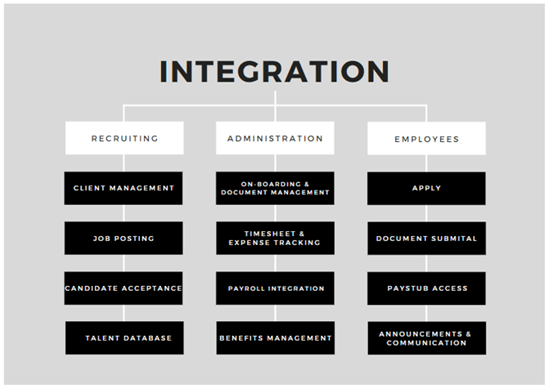
Recruiting:
- Client Management
- Storage and organization of key contact and billing data
- Job Posting data – bill rate, pay rate, duration
- Organization of client documents and contracts
- Track client needs and placement metrics
- Talent Database
- Storage of applicant information and qualifications in a browsable database
- Candidate Management
- Communication tools to maintain relationships with past and potential candidates
Administration:
- Easily send and receive required documents from new hires
- Customize on-boarding packages to include client specific documentation
- Secure storage of all employee documents
- Track each hire’s progress and immediately identify incomplete or missing documents
- Quick communication with hires throughout the process using the internal messaging system
- Timesheet and Expense tracking and approval
- Payroll integration that maintains employee paystub records
- Benefits Management that maintains enrollment records
Employee Services:
- Apply to job postings
- Submit and sign on-boarding paperwork electronically using the secure employee portal
- Upload images of primary documents (IDs, voided checks, etc.)
- Access submitted documents at any time
- Message Administrators with questions or assistance requests
- Timesheet and Expense submittal
- Payroll integration that allows employees to view their paystubs
- Benefits Management that allows employees to enroll in coverage and view their active coverage at any time
Personas and Scenarios
The following personas and scenarios have been created to better understand the targeted users in each user group. There is one persona and scenario for the Recruiter and Administrator category, and two personas and scenarios for the Employee category due the vastly greater number and variety of employees.
RECRUITER PERSONA – RUSSELL
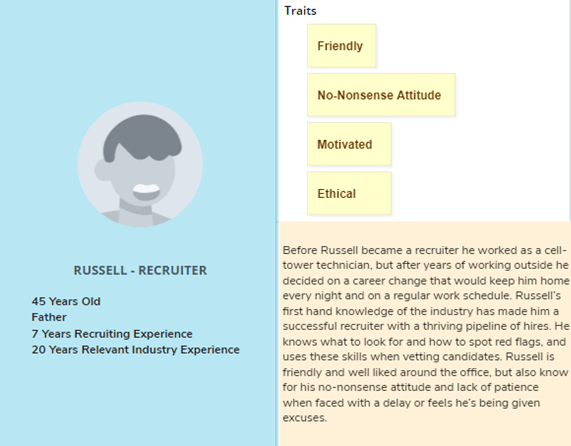
Russell has just landed a big contract with a new client. He’s excited to begin looking for hires and knows that he can increase his commissions significantly in the next few months if he works hard. He starts by entering the client’s information in the platform and uploading the client required documents that new hires will need to sign. He then creates the job postings using the information provided by the client and clicks submit, posting the jobs to the job boards. However, one-week later Russell has had hardly any applicants for the new positions, and the ones that have applied aren’t qualified. He feels frustrated and starts to question if he’ll be able to fulfill the client’s staffing needs. Russell remembers that he can browse the database of candidates stored in the platform. The information in the database is collected from applicants from other job postings on the site and categorizes the individuals based on their skill sets. Russell quickly finds multiple potential candidates and starts reaching out to them to see if they would be interested in applying for the new job postings, and soon he has multiple qualified candidates being interviewed by the client.
ADMINISTRATOR PERSONA – SUSAN
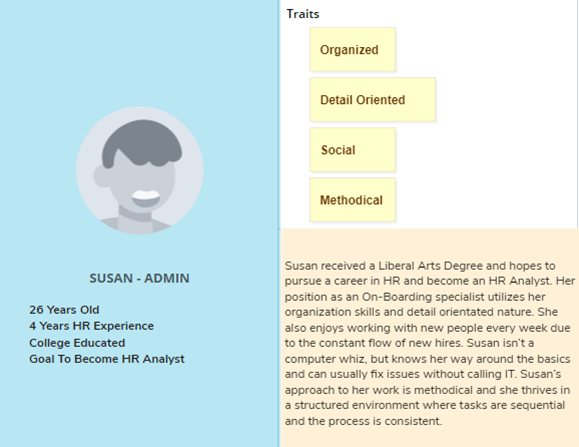
Susan is onboarding an employee who is often unavailable and only responds sporadically. The employee has only completed half of their paperwork and time is running out to get all the documents completed. Susan feels frustrated at the lack of progress and the employee’s failure to answer the phone or return voicemails. Susan sends the employee a message using the platforms internal messaging system. Within an hour the employee responds to Susan and provides her an update. Susan finds that this employee is resistant to speaking on the phone but communicates much more effectively using textual messages. By the end of the day the employee has completed all their required paperwork and, to Susan’s relief, is able to start on time.
EMPLOYEE PERSONA – FAISAL

Faisal has been hired for a position in the United States and must complete his on-boarding paperwork before he flies to the US in two weeks. Faisal is excited for the opportunity in the US but is concerned that despite his fluency in English, there may be a culture gap and he may have a difficult time understanding and becoming accustomed to US culture. Faisal begins completing his paperwork, but finds he is unfamiliar with certain terminology and confused by the purpose of certain documents. Faisal is annoyed when he is unable to leave portions of the document blank and that his entries are deleted if he navigates away from a document without submitting. Faisal reaches out to the company administrator to answer his questions but finds some of the administrator’s answers confusing and at times feels that the administrator doesn’t quite understand his questions. He is further frustrated by the fact that a phone conversation is difficult due to the time difference. He is stressed because he understands the importance and time sensitive nature of completing his paperwork but does not want to sign anything he doesn’t fully understand. After multiple email exchanges, Faisal and the administrator schedule a zoom session and the administrator explains the paperwork and answers Faisals questions as they complete his paperwork together. Faisal feels relieved when the task is completed and feels confident that he understands the documents he’s completed.
EMPLOYEE PERSONA – ANNIE
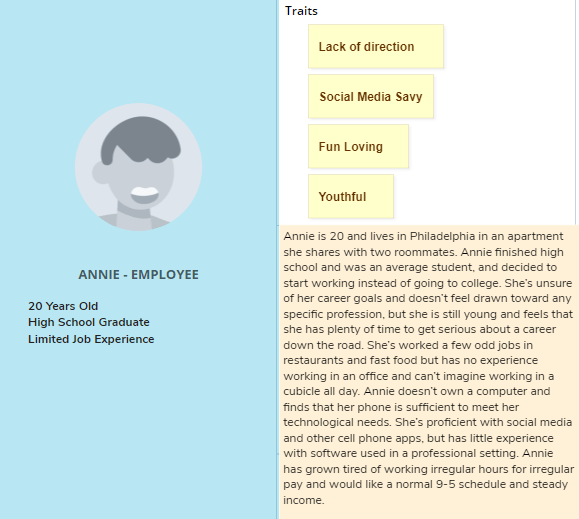
Annie is interested in starting a job with a set schedule and a consistent paycheck. She begins searching job boards for entry level positions but would prefer not to work in a call center or retail store. Annie feels hopeful when she finds a posting for a catering position that offers a set schedule of 40 hours per week and won’t require her to sit in a cubicle all day. She feels optimistic that her restaurant experience will make her an excellent fit and begins filling out the online application on her phone. At the end of the application, she is required to attach her resume as a PDF, which she is unable to do on her mobile device. Annie is flustered that she cannot simply type the information into the application but must now find a computer to upload a document. Annie feels anxious that the position may be filled by the time she can borrow a computer from a friend or get to the library. Annie becomes annoyed and decides to search a different job board where she finds a similar job posting on B&N’s recruiting site and can upload her resume using her mobile device. Annie applies for this position and doesn’t return to complete her application for the catering position.
System Requirements and Constraints
To enhance usability the Employee Portal can be accessed via desktop or mobile, however the mobile platform is the suggested version for Employee use. The mobile Employee Portal allows users to complete all essential on-boarding tasks such as submitting and signing company documents, as well as uploading any primary documentation such as IDs. If any of the optional features are elected, these tasks can also be completed by utilizing the mobile platform. Once a document is submitted an Employee is prohibited from editing or deleting a document.
The Administrative and Recruiting platforms are accessible via desktop app. For security purposes there is no mobile platform for these user groups. There are separate access profiles for Admin and Recruiting users, with the Admin users having access to sensitive employee information such as Social Security numbers, banking information, and dates of birth. Recruiting users are restricted from viewing sensitive personal information or accessing on-boarding paperwork, paystubs, or benefits information.
Platform Design
When creating the B&N Staffing Platform, the designers focused on a set of primary design goals to create a cohesive and easily navigated system. These principles include:
- Simplicity – focus the user’s attention on key features and avoid excess clutter or distracting flourishes.
- Intuitive Design– use of familiar icons and imagery to provide visual cues familiar to the user
- Consistency– consistent font, buttons, verbiage and icons to avoid confusion
- Color Theory– display colors within same color family (can be adjusted based on company logo). Button and accent colors used purposefully to provide visual cues to viewer regarding function, purpose, or importance
- Logical Sequencing – each task designed to include a logical sequence of events
Employee Portal
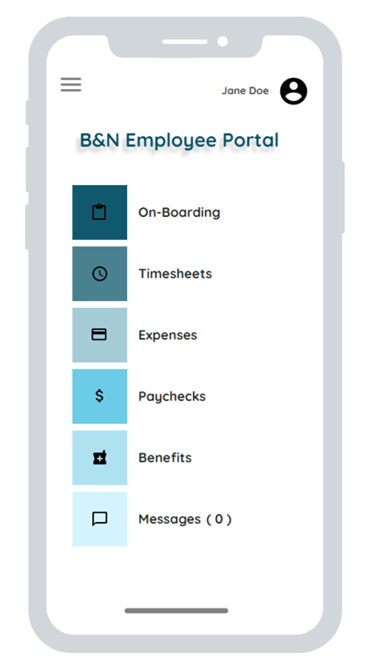
Below is an example of the Employee Portal homepage, where simple buttons using recognizable icons and textual labels inform the users of each button’s function. Colors from the same color family are utilized to create a clean and streamlined aesthetic, and can be customized based on a client’s brand needs.
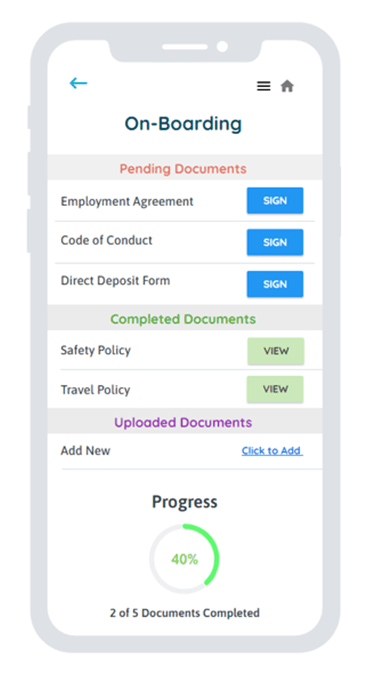
The On-Boarding page displays a list of documents to be completed by the employee. The documents are separated into three categories – Pending, Completed, and Uploaded. The actionable items are located at the top under the Pending section in order to grab the user’s attention. Documents are moved under the Completed section after the user successfully signs and submits. Color cues (green for Completed, orange/red for Pending, blue for Action Buttons) are displayed to help the user understand what action needs to be taken or the status of a document. The user’s progress is displayed at the bottom and informs the user how many documents still need action.
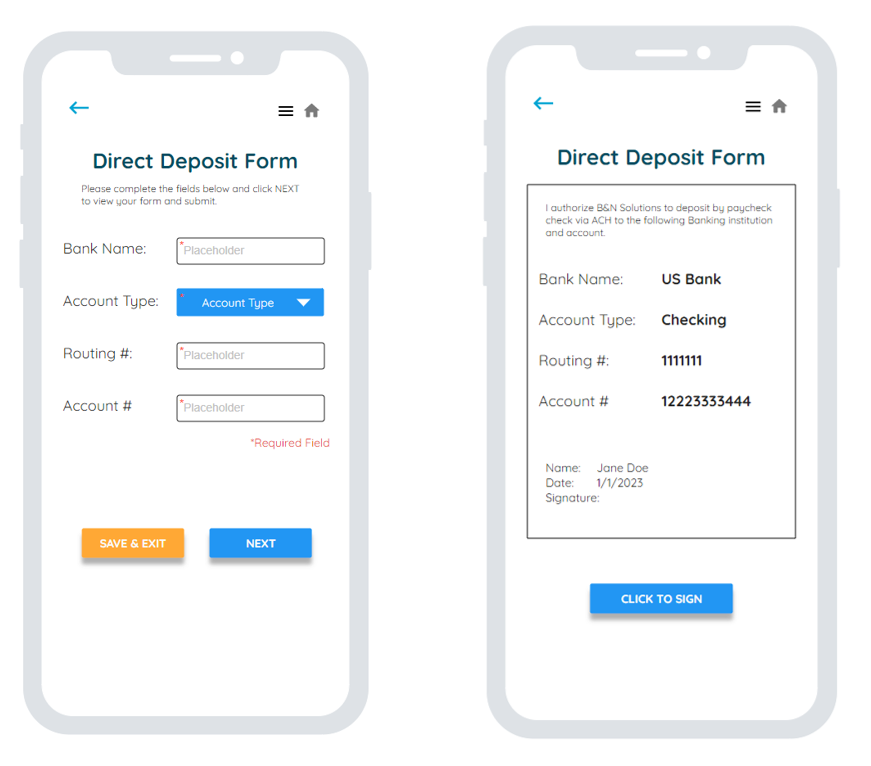
Textual documents are displayed in their entirety for users to review prior to signing. Documents that require user input utilize data format enforcement when appropriate to prevent input errors. Required fields are identified using an asterisk. At each stage users have the option to Save and Exit or click the back button, the menu button, or home button to navigate away. Action buttons including Next, Click to Sign, and Sign and Submit are also clearly visible. Users are shown a display of a document before and after the final signature is executed, and once a document is executed the user is notified with a check mark and a message highlighted in green.

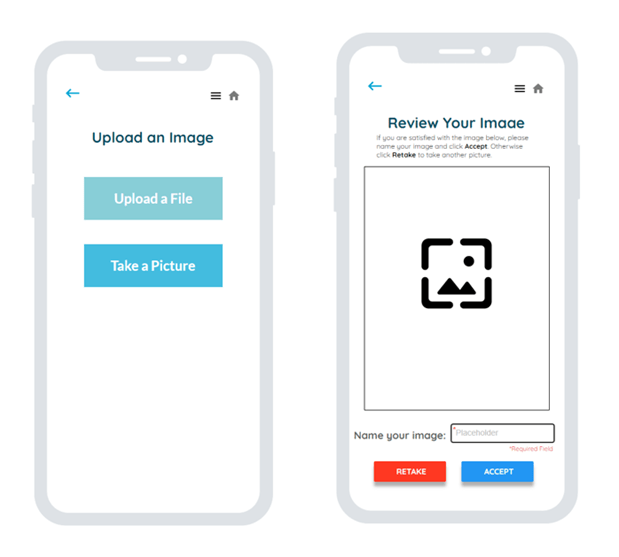
Users can upload an image or take a photo by clicking Click to Add on the On-Boarding page under the Uploaded section. If the user takes a photo, they will be asked to review before final submission.
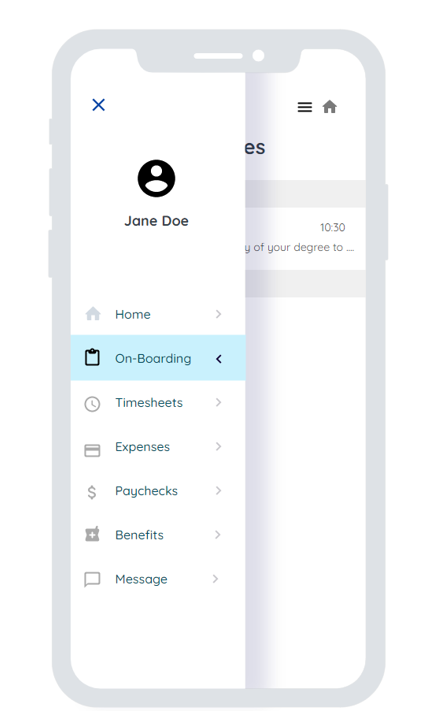
On any page a user can return to the home screen by clicking on the Home Icon. Users can also use the pop-out side menu by clicking on the Menu Icon.
Administrative Portal
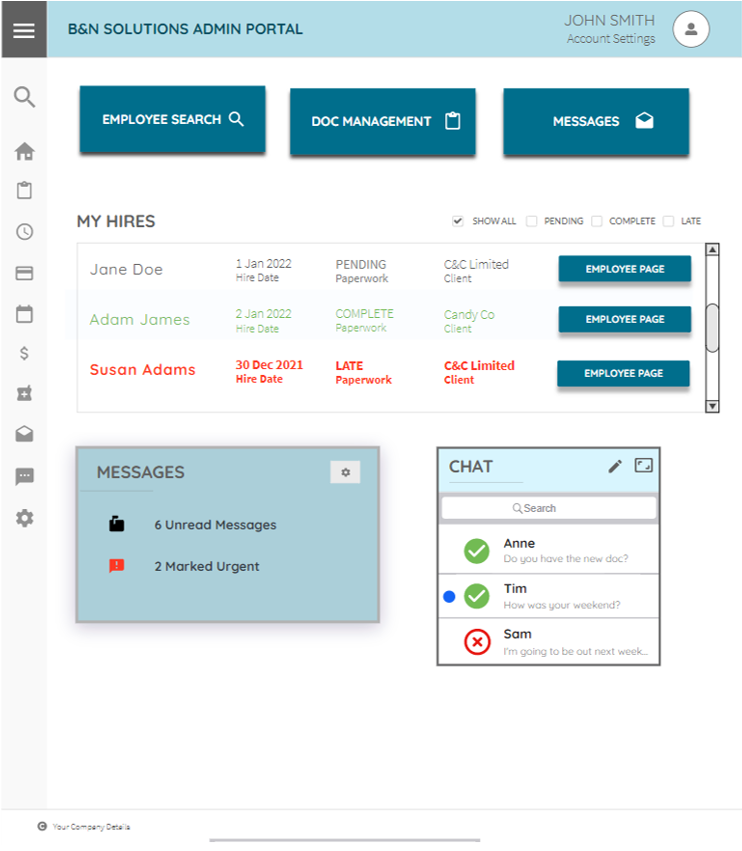
The Administrative and Recruiter Portal host similar designs. Below is an example of the homepage as seen by an On-Boarding Specialist. A side menu displays icons for different functionalities including Document Management, Timesheets, Expenses, Benefits, etc. At the bottom is a Messages Box that shows a summary of unread and urgent messages, as well as a Chat Box to communicate with internal staff.
Located at the top are large action buttons that can be customized based on the user’s preferences. The default options are Employee Search, Doc Management and Messages. Displayed beneath these buttons is a scrollable box that includes the name and information of all employees assigned to the On-Boarding Specialist that have future start dates. To view an employee’s page the user can click on the Employee Page button at the end of the row.
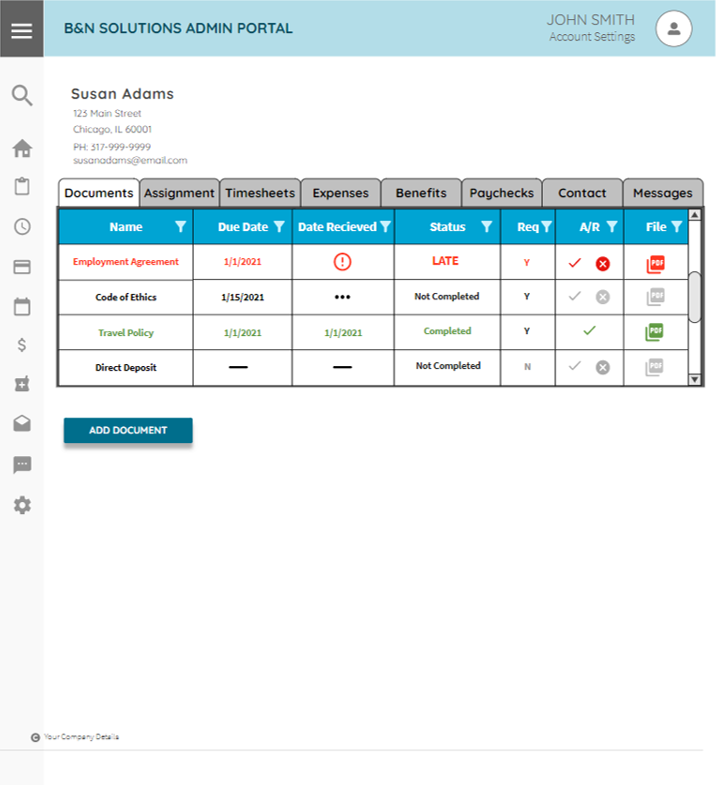
Once on an employee’s page, the user can view any missing or completed documents. Past due documents are displayed in red and completed documents in green. Each document row includes the document’s Name, Due Date, Date Received, Status, Req (Required – Yes or No), A/R (Accept/Reject) and File Icon. Once a document is completed, the user must click the check or “X” icon in the A/R (Accept/Reject) column. If the document is accepted the line item will turn green and the PDF icon in the File column will be activated, allowing the user to click and view the completed document.
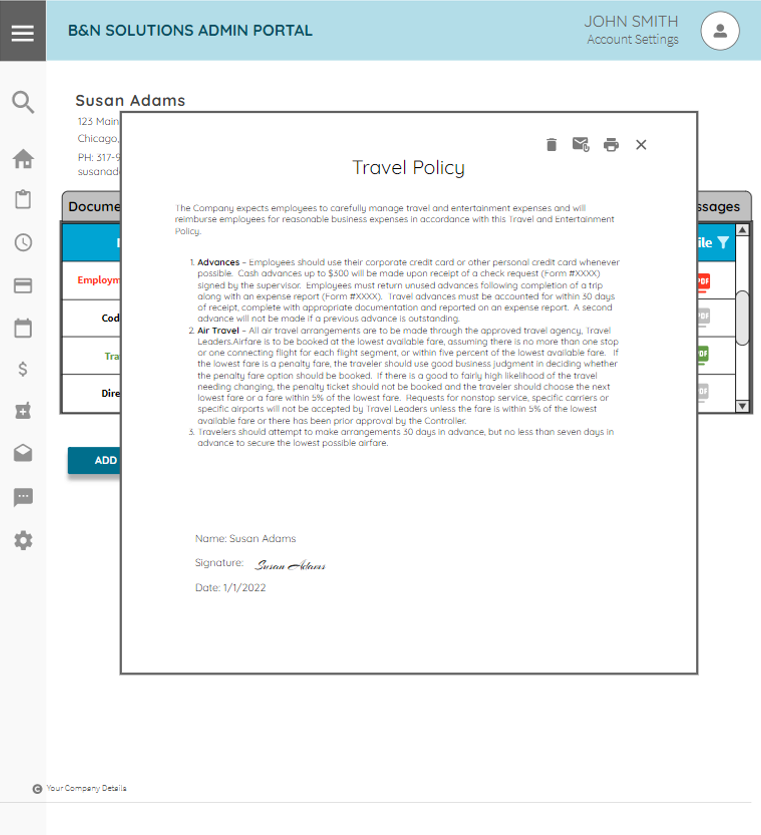
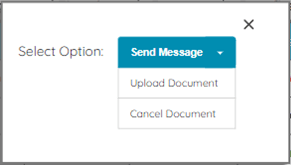
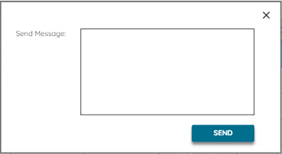
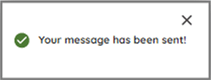
If the user clicks on a red Past Due document a pop up will appear with the options to Send a Message, Upload Document, or Cancel Document. If the user chooses to Send a Message, a message box will appear where the user can draft and send the message directly to the employee, followed by a confirmation that the message has been sent.
Usability Evaluation
A usability evaluation was conducted by 5 experts using the Neilson 10 Principles. The B&N Staffing platform performed well and achieved a high usability ranking. A summary of the results follows:
Visibility of system status
• Acknowledgement of successful submittal
• Updated screen confirming updated status of document
• Progress indicator
Match between system and the real world
• Use of natural language
• Familiar icons and color cues
• Predictable sequence
User control and freedom
• Ability to save and return
• Back button, menu button, home button
• Ability to customize home screen (Admin and Recruiting)
Consistency and standards
• Consistent icons, color pallet and visuals
• Consistent screen views at each stage of submittal
Error prevention
• Data format enforcement
• Error messages when requirements incomplete
• Hovering tool tips
Recognition rather than recall
• Familiar icons
• Visible buttons with action titles
• Clear headers and field titles
Flexibility and efficiency of use
• Mobile site for easy accessibility
• Upload/take pictures using phone
• Electronic signatures
• Visible Action Buttons
• Multiple Action options
Aesthetic and minimalist design
• Consistent color pallet and font
• Limited distractions and flourishes
Help users recognize, diagnose, and recover from errors
• Error messages with correction instructions
• Data format enforcement
• Save and return options
Help and documentation
• Sequential process
• Messages to Admins
• Tooltips
 Nora Ambrosius